Applying Credits or Charges
The Charges option allows users to post charges against payments. Users can post credits or charges to a customer’s A/R account by using the Apply Credits/Charges option and apply finance charges to a transaction by selecting the Finance Charges option. The user can navigate to this screen through one of the following options:
-
Accounting à Customer Maintenance à View A/R Customer Maintenance à Apply Credit or Charges
-
Accounting à Charges à Apply Credit/Charges
Breakpoint: 190030 - Apply Credits/Charges (Engineering - Accounting)
Perform the following steps to apply charges against payments:
Select the mode through which the transactions with credit charges must be filtered:
-
Account - The user can search for the credit transactions by entering the customer account number in the Account Code field.
-
Batch - The user can search for the credit transactions by entering the batch number in the Batch Number field.
-
Invoice - The user can search for the credit transactions by entering the invoice number in the Invoice Number field.
-
Transactions - The user can search for the credit transactions by entering the transaction number in the Transaction Number field.
-
All Credits - The user can view all credit transactions in the Account Charges grid.
Assume the user selects the Account option from the options listed above and enters the account number in the Account Code field.
A list of transactions (excluding credit transactions) for which charges must be applied in the customer’s account is displayed in the Account Charges grid. Credit transactions are displayed in Credit Transactions section.
Select the credit transaction. The value of the Balance to Distribute field will be updated to the selected credit value, and an icon for applying the total transaction value will appear next to the transaction record in the grid.
Enter the credit value to be applied to the transaction in the Amount Applied field or select the Apply Charges icon to apply the total transaction value. If the entered amount exceeds the balance, an information icon indicating that the entered amount exceeds the balance will be displayed.
The value of the Balance to Distribute field is updated accordingly.
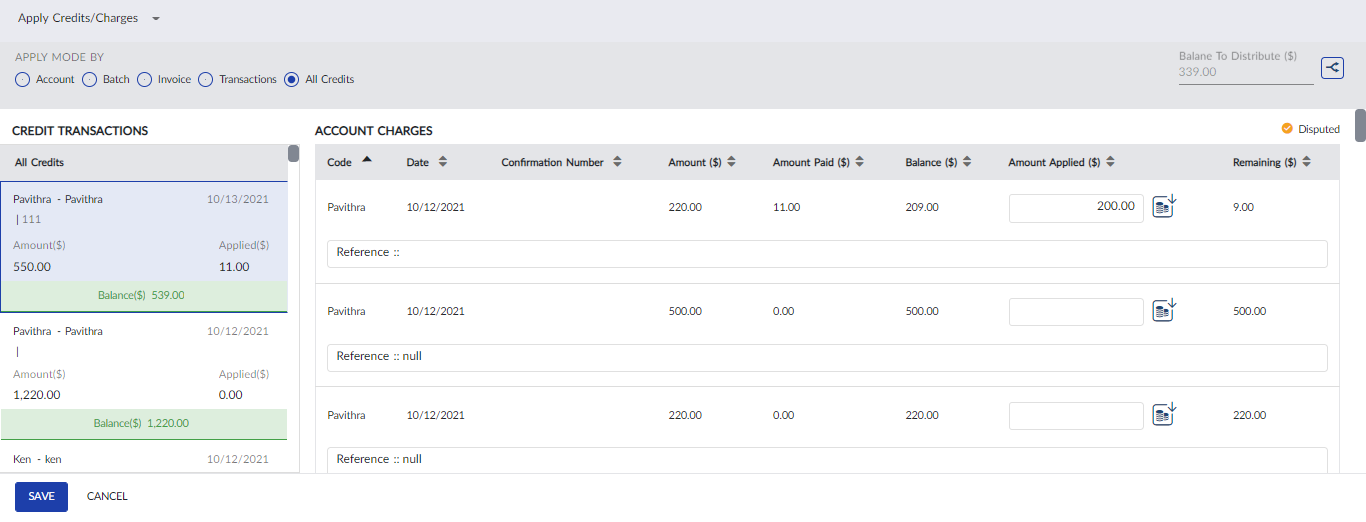
The user can enter any comment as a reference in the Reference field.
Click Save. The credit charges are applied, and the remaining transaction amount is updated.
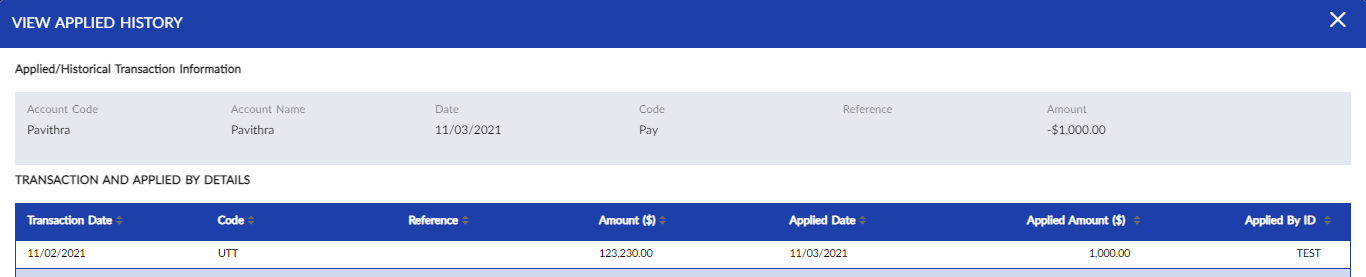
Users can now navigate to the View Customer Transaction screen to view the updated transaction details. The View Applied History option in the kebab menu for the transaction record in the grid will be enabled for selection. When selected, the user can view the history of charges/credits applied to the transaction.